How to Add Leads to Instantly Without a CSV
Send verified leads straight into Instantly, Smartlead or lemlist campaigns, or a Clay table, with no CSV exports. Setup, field mapping and agency tips.

Here's how most cold email campaigns get their leads: search a database, export a CSV, open it in a spreadsheet, rename the columns, delete the junk, save it as UTF-8, upload it to Instantly, map every field, and hope nothing broke on the way.
It works. It's also where lists go wrong. Columns get mismatched, the same owner ends up in two campaigns, last month's unsubscribes sneak back in, and the file you upload on Friday is a copy of a list you cleaned on Tuesday.
Since October, you can skip all of that. Coldlytics sends contacts straight from your Contacts page into an Instantly, Smartlead or lemlist campaign, or into a Clay table as new rows. This guide walks through the setup, what data lands where, and how I'd run it if I were sending for several agency clients.
Why the CSV step causes most list problems
A CSV isn't wrong, and Coldlytics exports are free and unlimited if you want one. The problem is everything a manual file asks you to get right by hand, every single time.
Instantly's own CSV import, for example, needs an email column mapped on every row, column names of 20 characters or fewer, UTF-8 encoding and no more than 50 variables per upload. None of that is hard. It's just easy to get slightly wrong at 6pm on a Friday.
| Export and upload a CSV | Send directly from Coldlytics | |
|---|---|---|
| Steps | Export, clean, rename columns, upload, map fields | Filter, pick a campaign, send |
| Field mapping | Redone on every upload | Set once per connection |
| Duplicates | Depends on the upload settings you pick | Matched on email, so re-sends top up the campaign |
| Freshness | A snapshot of whenever you exported | Whatever your Contacts page shows right now |
| Audit trail | Your downloads folder | Sync History with created, updated, skipped and failed counts |
If you send one list a quarter, a CSV is fine. If you launch campaigns every week, or for several clients, the direct route saves time and removes most of the ways a list goes wrong.
What you need before you start
- A Coldlytics account. Integrations are included on every plan, including the free plan (25 credits a month, no card).
- An API key from your sequencer. In Instantly, create one under Settings, Integrations, API Keys with access to campaigns and leads. In Smartlead, it's under Settings, and API access needs Smartlead's Pro plan or higher. In lemlist, generate one under Settings, Integrations.
- A campaign that already exists. You choose the destination campaign when you send, so create it in your sequencer first. Your sequence copy can come later.
- Your suppression list. Current clients, open deals, competitors and anyone who has asked not to hear from you. Load it in Coldlytics Settings before you build the list, not after. Our lead list guide covers why the order matters.
How to send leads to Instantly, Smartlead or lemlist
1Step 1: Connect your sequencer
Open Integrations in the Coldlytics dashboard, pick Instantly, Smartlead or lemlist, and paste the API key. You only do this once per account. You can connect more than one sequencer account if you run separate workspaces for separate clients.
2Step 2: Build the list in Voyager DB
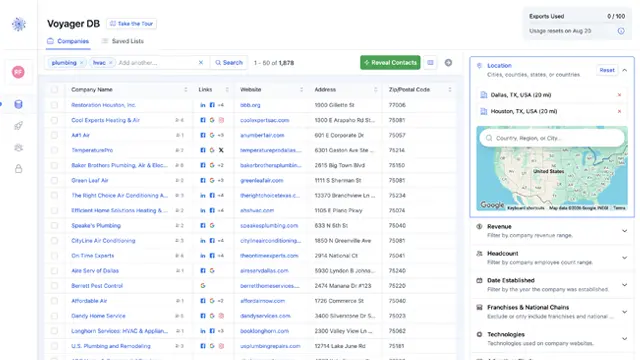
Search like you'd say it: "HVAC companies in Phoenix with fewer than 20 Google reviews" or "independent dental practices in Tampa". Narrow it with filters such as location, Google reviews, technologies or headcount, then reveal the decision-makers you want.
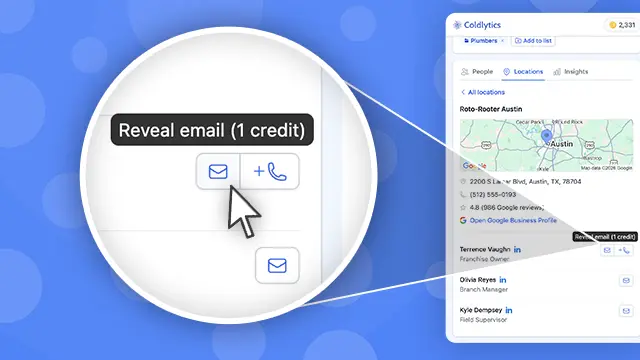
Reveals cost 1 credit per verified email, and you only pay for valid emails. Catch-alls are free on instant reveals, and invalid emails are never delivered. If the database runs dry for your niche, hand the rest of the search to our research team and up to 1,000 hand-researched contacts arrive in the same Contacts page within 24 hours on business days.
Tag the reveals as you go ("phoenix-hvac-nov", or the client's name). Tags make the next step easy.
3Step 3: Filter Contacts to exactly who should get the email
This is the step that matters most, because whatever the Contacts page is showing is what gets sent.
- Filter by tag, task or date added to isolate this campaign's list.
- Filter by job title, seniority or department if you only want owners, or only marketing managers.
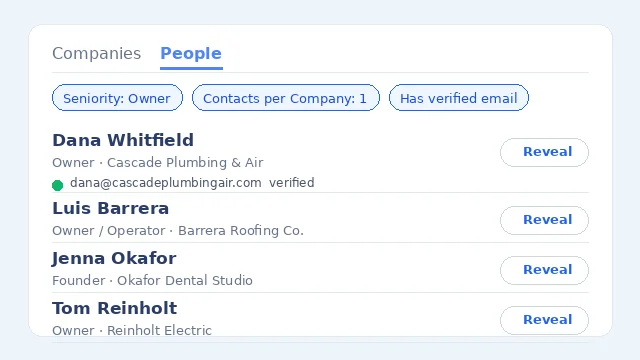
- Set Contacts per Company to 1 to push exactly one person per business. Coldlytics keeps the most senior person at each company. At small businesses that's usually the owner, and it stops three people at the same plumbing company getting the same email on the same morning.
- Tick specific rows if you only want some of them. With nothing ticked, everything matching your filters goes.
4Step 4: Send to the campaign
Choose Send to, pick the tool, then pick the campaign. The contacts land as leads with their verified email, name, job title, company and website. If you've revealed a direct dial, it goes along too, which matters in lemlist if your sequence has call steps.
The push runs in the background, so you can keep working. Sends of everything matching a filter aren't capped at 5,000 contacts anymore.
5Step 5: Check Sync History
Integrations, Sync History shows every push with its destination and the created, updated, skipped and failed counts, plus the reason for any failure. Glance at it before you launch. If 400 went in and 400 were created, you're good.
Because sequencers match on email, you can send again next week after another round of reveals. Existing leads are matched instead of duplicated, and only the new people are added.
What lands in each tool
The core fields are the same everywhere: name, job title, verified email, direct dial when you've revealed one, LinkedIn profile, company name, website, phone and address. The difference is how each tool stores the extras.
| Tool | How you connect | Where contacts land | Extras worth knowing |
|---|---|---|---|
| Instantly | API key with campaign and lead access | The campaign you pick | Company, website, city, state and LinkedIn arrive as merge variables |
| Smartlead | API key (Smartlead Pro or higher) | The campaign you pick | Job title, city and state arrive as custom fields for your templates. Direct dial goes along when revealed |
| lemlist | API key | The campaign you pick | Ready for email, LinkedIn and call steps. Direct dial goes along when revealed |
| Clay | Webhook URL from your Clay table (plus its auth token, if you set one) | New rows in that table | One flat row per contact, including your tags and firmographic fields |
| HighLevel | Your HighLevel agency login | The sub-account you pick | Map job title and LinkedIn to custom fields once |
If your clients live in HighLevel rather than a sequencer, the same Send to button pushes into whichever sub-account you choose. Our guide to HighLevel for agencies covers that side. Pipedrive connects with your Pipedrive login in the same way. For the full list of tools, see our integrations page.
Use the fields to personalize, not just to fill a template
Getting city, state and job title into your sequencer is the easy part. Using them well is what earns replies.
- City beats company name. "Quick question for a Mesa HVAC owner" reads like you know the market. Company-name tokens read like mail merge, because they are.
- Job title decides the angle. An owner cares about booked jobs and cash flow. An office manager cares about fewer phone calls. If your list mixes both, split it into two campaigns rather than writing one email that fits neither.
- Tags become segments. If you tagged reveals by signal ("few-reviews", "no-website-booking"), send each tag to its own campaign with an opening line that matches the reason you picked them.
- Plan the follow-ups before you send. Most replies come after the first email. Our guide to cold email follow-ups covers cadence and angles.
And keep volume sensible. Around 30 emails a day per inbox, with bounces under 2%, keeps your domain healthy. Verified emails help with the second part. Your sending setup handles the first.
Sending contacts to Clay
Clay is the one integration that works in both directions.
From Coldlytics into Clay. In your Clay table, add a Webhook source and copy its URL. Paste it into Coldlytics with a name for the table, plus the auth token if you set one on the webhook. Each connection is one table, so connect another webhook to feed another table. From then on, Send to Clay drops every contact in as a new row, ready for whatever enrichment or AI columns you run.
From Clay into Coldlytics. Add Coldlytics as an HTTP API column in Clay and it can look up a company by domain (categories, size, Google listing, website signals), enrich a person by email or LinkedIn URL, find a work email from a name, or find the decision-maker at a domain with a verified email in one call. A miss is free and leaves the cell empty, so the next provider in your waterfall runs. Our Clay setup guide has the exact column settings.
Running it for several agency clients
This is where direct sending pays off most. A setup I'd use:
- One tag per client. Every reveal and research task for a client gets their tag, so their list is always one filter away.
- One destination per client. Connect each client's sequencer account, Clay table or HighLevel sub-account, and pick it at send time.
- One suppression list, kept current. Your clients' existing customers and open deals go in, so nobody gets pitched by their own supplier.
- Dedupe on by default. Coldlytics won't charge you twice for a contact you already own. If two clients in different territories both want the same business, switch dedupe off for that task and deliver it again for the second client (billed as normal).
- Check Sync History before every launch. It takes ten seconds and catches the one failed push that would otherwise surface as "why is this campaign so small?"
FAQ
Do the integrations cost extra?
No. Every integration, the API and the MCP server are included on every plan, the free plan too. Credits are only spent when you reveal a contact or launch research. If you want to try it on a full campaign, the Growth plan has a 7-day free trial with 150 credits (a card is needed, with a $1 authorization that's refunded).
Will sending the same contacts twice create duplicates?
No. Instantly, Smartlead and lemlist match on email, so a re-send tops up the campaign. Only new people are added, and Sync History shows how many were created, updated or skipped.
Can I still export a CSV?
Yes. Contact exports are free, unlimited and never cost credits. Direct sending just means you don't have to.
What about HubSpot, Zapier or a tool that isn't listed?
HubSpot can't be connected on new accounts, because HubSpot declined our marketplace listing. Accounts that connected it before that still work. There's no Zapier or Make app. For anything else, use the REST API or a CSV export, and tell us in the chat which integration you'd like next.
Need a targeted B2B contact list?
Tell us who you're after and our researchers hand-build it within 24 hours. 25 free leads a month, forever.
By signing up, I agree to Coldlytics' Terms of Service and Privacy Policy.